Image Resizing
Resizing remaps an image grid to a new width and height with scale factors, averaging neighborhoods to shrink and sampling between pixels to enlarge.
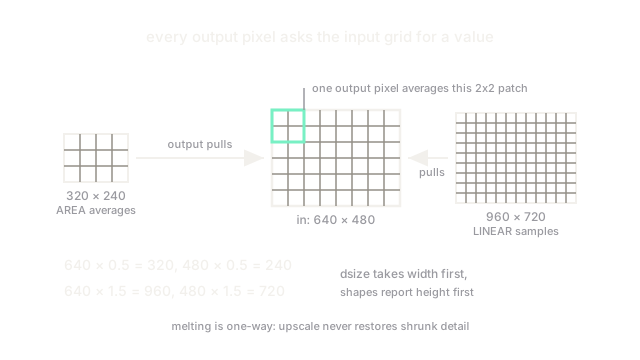
Why Does This Exist?
Neural networks demand fixed input sizes, thumbnails must fit a layout, and pyramids need half-scale copies. Resizing is the operation that changes an image's width and height while trying to keep what it shows. It looks trivial and fails quietly: the wrong method blurs away the detail you needed or invents ringing at edges.
Resizing is a geometric warp restricted to scaling, and every output pixel needs a value estimated from the input grid, which is interpolation. This page covers the size math, the direction-dependent method choice, and aspect ratio. The sampling math itself lives on the interpolation page.
Think of It Like This
Retiling a mosaic with different tile sizes
Picture a mosaic made of square tiles. To shrink it, you melt each 2 by 2 block of old tiles into one new tile whose color is the average: that is area resampling. To enlarge it, you cut each old tile into smaller ones and guess the color between neighbors by blending: that is linear or cubic sampling.
The analogy stops at reversibility. Melting tiles destroys detail, and no enlarging method gets it back. A downscale-then-upscale round trip returns a blurrier image, never the original.
How It Actually Works
Size math
OpenCV's cv2.resize(img, dsize, fx, fy) takes either an absolute (width, height) pair or scale factors. With factors, output size is and . A 640 by 480 image at becomes 320 by 240; at 1.5 it becomes 960 by 720. Note the argument order: dsize is width-first while array shapes are height-first, a daily source of transposed outputs.
Method depends on direction
- Shrinking (): use
INTER_AREA, which averages each output pixel's footprint in the input. Point-sampling methods skip rows and produce moire on textures. - Enlarging (): use
INTER_LINEAR(fast default, bilinear) orINTER_CUBIC(sharper, slower, 4 by 4 neighborhood).INTER_NEARESTis only for label masks, where blending would invent classes that do not exist. - Default trap:
INTER_LINEARin both directions. It is acceptable for enlarging but aliases when shrinking past about 0.5, so pass the flag explicitly.
Aspect ratio
Scaling and by different factors stretches content: faces widen, circles become ellipses. When the target box has a different shape than the image, first scale to fit (letterbox with padding) or crop to the target ratio, then resize. Detection pipelines do this so boxes stay valid.
Code
w, h = 640, 480
for fx, fy in [(0.5, 0.5), (1.5, 1.5)]: print(round(w * fx), round(h * fy))# -> 320 240# -> 960 720Watch Out For
INTER_LINEAR moire when shrinking
Downscaling a textured image (stripes, fences, screens) with the default linear flag skips input rows and creates wavy moire that was never in the scene. The symptom is shimmering patterns in thumbnails. Switch shrinking calls to INTER_AREA, which averages instead of skipping.
Width-height swap in dsize
cv2.resize wants (width, height) but img.shape reports (height, width). Passing img.shape[:2] as dsize silently transposes non-square images. The symptom is a rotated-looking, stretched output. Always pass (w, h) explicitly or use fx/fy and pass None for dsize.
The Quick Version
- Resizing maps an output grid onto the input grid; size follows , .
- Shrink with
INTER_AREA(averaging); enlarge withINTER_LINEARorINTER_CUBIC. - Use
INTER_NEARESTonly for label masks, never for photos. dsizeis width-first; array shapes are height-first.- Preserve aspect ratio by fitting plus padding or cropping before resizing.